
Product Details
Understanding HP Recovery for Windows 11 USB Reinstallation
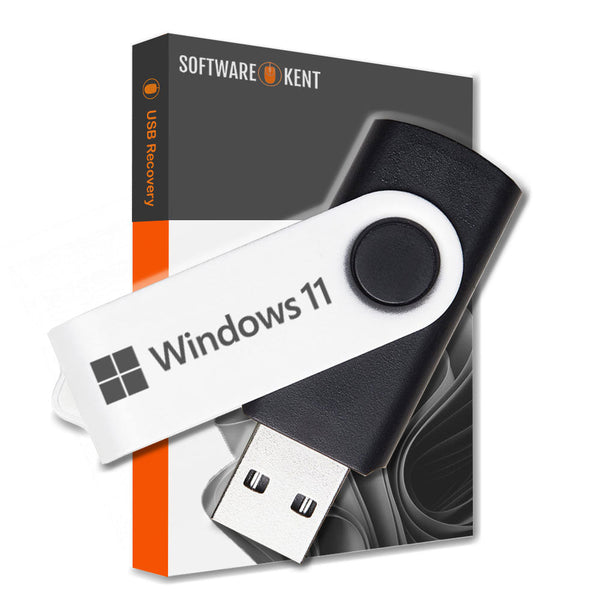
HP Recovery for Windows 11 USB Home and Professional Reinstall
- USB: Windows 11 Home and Professional 64 Bit Versions
- Manuals: Full Instructions Provided
- Reinstall, Recovery, Repair
- PC/Laptop is very slow, not loading windows or if you have a black/blue screen this is what you need.
- You can also Install Fresh Windows 11 onto a new Hard Drive or your existing one
- Works with ASUS, ACER, DELL, TOSHIBA, SONY, HP and all others makes and models
- Your computer guaranteed to be just like new FAST & RELIABLE
- You will also receive a Discount Code for your next order.
- Requirements: Firmware: UEFI, compatible with Secure Boot , TPM: Trusted Platform Module 2.0 (Read Below)
Product Key - if you bought your computer with windows 11 pre-installed then you DO NOT require a product key. This media will detect the product key automatically.
If you want to install windows 11 on a new hard drive or you never had Windows 11 operating system, in this case you will need an activation code, which we do sell .
What is HP Recovery for Windows 11?
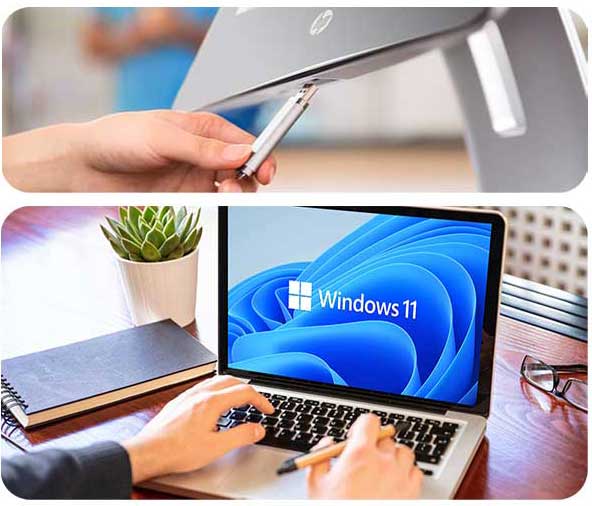
HP Recovery is a powerful tool designed for users who need to reinstall Windows 11 on their HP computers. Using a USB flash drive, you can create a recovery media that allows you to restore your system to its original factory settings. This is particularly useful when your computer encounters serious issues that cannot be fixed through standard troubleshooting methods. HP Recovery not only helps in recovering the operating system but also preserves your personal data, making it an essential tool for any HP user.
How to Create a Recovery USB
Creating a recovery USB involves several steps, but it isn't complicated. First, ensure you have a USB drive with at least 16GB of storage available. You can access the HP Recovery Manager from your computer. Select 'Create Recovery Media' and follow the on-screen instructions. It’s important to note that this process may take some time, so ensure you have adequate power and don’t interrupt the process. Once completed, you’ll have a bootable USB drive ready for use.
Using the Recovery USB
After creating your recovery USB, you can use it to reinstall Windows 11 at any time. Simply insert the USB drive into your HP computer, restart it, and enter the BIOS setup to change the boot order. Choose the USB drive as the primary boot device. The recovery process will guide you through reinstalling Windows, and you will have the option to keep or remove personal files. This flexibility makes it an effective solution for both home and professional users.
Product Reviews
Shipping
Instant Delivery (Digital Delivery) – How It Works
We deliver your digital product fast after checkout. This page explains exactly how delivery works, where to find your order, and the most important notes to ensure a smooth experience.
Delivery Summary
- Delivery type: Digital / instant delivery (no physical shipping).
- Where you receive it: Order confirmation page + email delivery.
- Typical delivery time: Immediately to a few minutes after payment approval.
- Check spam/junk: If you don’t see the email, it may be filtered.
1) What “Instant Delivery” Means
Instant delivery means your purchase is delivered electronically. You’ll receive your download link, license key, access instructions, or digital files without waiting for shipping. Nothing is posted to you.
2) Where to Find Your Digital Delivery
- Order confirmation page: After checkout, you may see delivery details immediately on-screen.
- Order confirmation email: We send an email containing delivery details (download link, key, or instructions).
- Your Shopify account (if you created one): You can view order details and any digital downloads from your account area.
3) Delivery Time & Payment Approval
Delivery is usually immediate once payment is approved. Some payment methods can take a little longer to confirm (for example, bank-based methods or additional security checks). If your delivery doesn’t appear right away, please allow a few minutes and then check the troubleshooting steps below.
Important Notes Before You Buy
- Make sure your email address is correct at checkout (this is where delivery is sent).
- Check spam/junk and Promotions tabs if your delivery email doesn’t arrive.
- One purchase = one licence/access (unless the product page states otherwise).
- Digital items aren’t shipped and don’t include a physical disc, USB, or printed documents (unless stated).
- Use the correct device/account if your product requires sign-in or platform access.
- Do not share your licence/key publicly to avoid unauthorised use.
4) Troubleshooting: I Didn’t Receive My Delivery
If you don’t see your delivery, try the steps below:
- Wait 5–10 minutes (some payments take a moment to approve).
- Search your inbox for your order number or our store name.
- Check spam/junk and any “Promotions”/“Other” folders.
- Verify your email address on the order confirmation page or receipt.
- Try another mailbox view (mobile vs desktop, or a different email client).
Still stuck? Contact us with your order number and the email address used at checkout. We’ll help you locate your delivery as quickly as possible.
5) Refunds, Returns & Digital Products
Digital products are delivered instantly and may include licence keys or downloadable files. Because of the nature of digital delivery, refunds are typically only offered in line with our store policy and where applicable. If you have an issue accessing your purchase, please contact us first — we’re happy to help troubleshoot and resolve it.
6) Contact & Support
For the fastest support, please include:
- Your order number
- The email address used at checkout
- A short description of the issue (and screenshots if relevant)
Tip: If you purchase multiple digital items, you may receive separate delivery lines/links for each product.


